Managing FiveM Server
Note: This guide is only for FiveM servers installed on the Linux platform.
Uploading Files
During the installation of the FiveM server, you received SFTP/SSH user credentials.
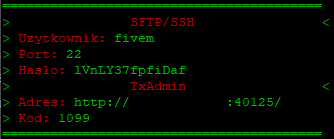
Use these credentials to connect via any file transfer program.
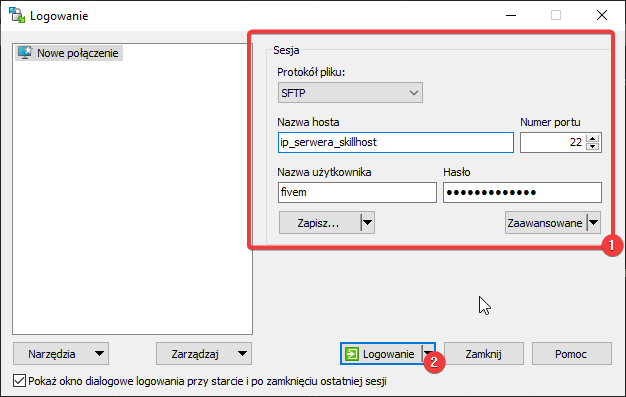
Connecting to the Database
Add the following line to the server.cfg file:
set mysql_connection_string "server=127.0.0.1;database=DATABASENAME;userid=USERNAME;password=PASSWORD"
- server – Since the database is installed locally, use the localhost address or 127.0.0.1.
- database – Specify the name of the database where the structure was imported.
- userid – Enter the username (provided during database installation).
- password – Enter the password for the specified user.
Updating Artifacts
- Log in to SSH.
- Navigate to the FiveM server location using
cd /home/fivem. - Run the command
./update_artifacts.sh. - Artifacts updated!
Fixing Permissions and Corrupted Artifacts
- Log in to SSH.
- Run the command
skillhost. - Select option 3.
- Done!
Managing the Server
- Stop txAdmin from SSH:
service fivem stop. - Start txAdmin from SSH:
service fivem start. - Restart the server from txAdmin SSH:
service fivem restart. - Change the password for the FiveM user:
passwd fivem(note - the new password you enter will not be visible.) - Disable the server's auto-start:
systemctl disable fivem.